Key points:
- Play Console’s own help documentation describes a YouTube Videos page. Separate from the single preview video field. You can link a full channel or playlist there.
- You can add multiple channels or playlists. Split by language or region. Not just one.
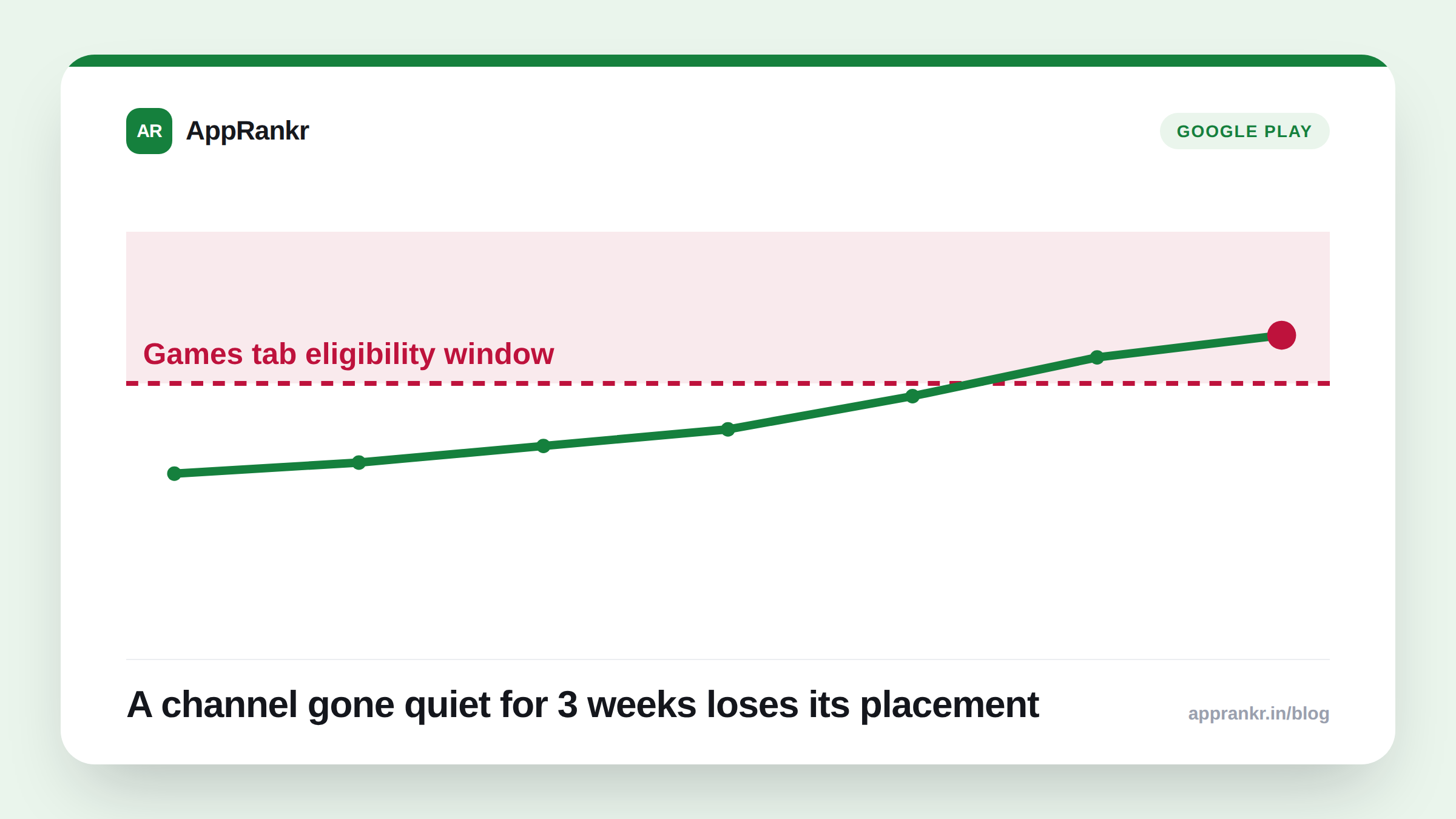
- Games face a real recency cutoff. A video needs to be uploaded within 21 days for the Games tab, and within 90 days for the regular store listing.
- Play Console includes a performance dashboard. It shows how people actually interact with your video content on the listing.
Most teams treat their Play Store preview video as one fixed clip. Uploaded once. Rarely touched again. Play Console’s own documentation describes a much bigger option most listings aren’t using yet.
One video vs. a whole channel
The standard preview video field takes one YouTube video URL. That’s the clip most visitors see first. Separately, Play Console’s own help pages describe a YouTube Videos page. You reach it through Grow users, then Store Presence. There, you enter a channel or playlist URL instead. That connects your whole channel, or a specific playlist, to your listing. Not one clip. A running set of content.
| Feature | What it links |
|---|---|
| Preview video field | One specific YouTube video URL |
| YouTube Videos page | A full channel or playlist URL |
| Multiple entries | Yes, split by language or region |
The recency window most teams miss
Games face a real cutoff here. A video must be uploaded in the last 21 days to stay eligible for the Games tab, per Play Console’s own documentation. The regular store listing has a wider window. 90 days. A great gameplay video from six months ago might still show on your listing. But it’s already too old for the Games tab.
That means a channel or playlist connected once and forgotten quietly loses its Games tab placement over time. Even though nothing on the listing itself changed. Keeping a channel active with fresh uploads, not just linking it once, is what keeps that placement alive.
Real-world scenario: A mobile game studio linked their YouTube channel to their Play Store listing at launch, then didn’t upload anything new for two months. They noticed their Games tab video placement had quietly disappeared and assumed a bug. Checking Play Console’s own documentation showed the real cause: their most recent upload had aged past the 21-day window. They set a simple monthly upload cadence for short gameplay clips. Their Games tab placement came back within the next eligibility check.
What to actually do about it
- Link a channel or playlist, not just a single preview video. Play Console’s own YouTube Videos page supports both. A channel keeps showing fresh content automatically as you upload.
- Keep uploads inside the 21-day window if you’re a game. The Games tab specifically checks recency. A channel gone quiet for over three weeks loses that placement.
- Use separate entries for different languages or regions if you serve them. Play Console’s own documentation supports multiple channel or playlist links for exactly this.
- Check the performance dashboard, not just upload and forget. Play Console shows real interaction data on your video content. Worth reviewing before assuming a video is working.
AppRankr’s Rank Tracker tracks your Google Play visibility over time, so you can see whether a change like adding fresh video content actually moves your numbers.